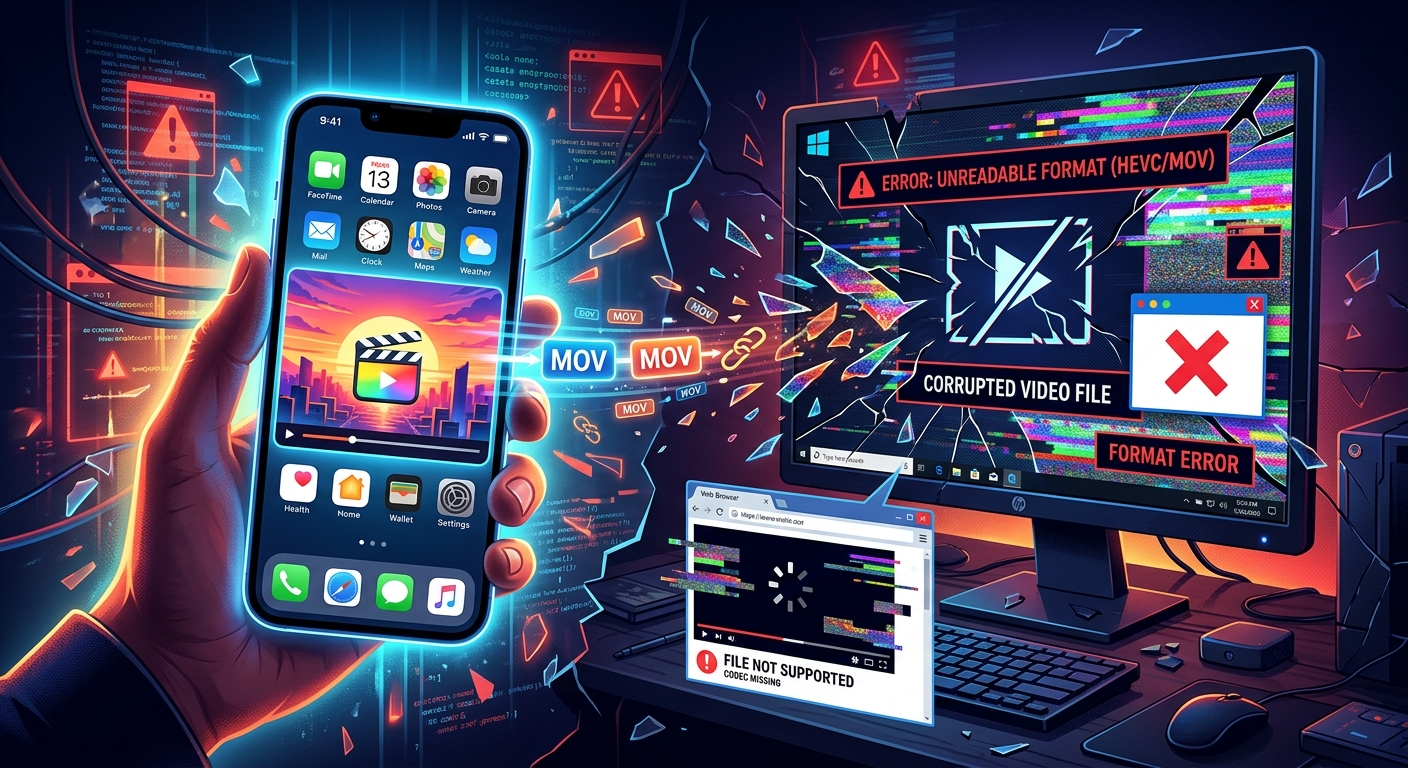
You record a clean shot on your iPhone. It looks perfect on screen. You send it to a colleague on a PC, try to attach it to a website, or drop it into a group chat, and suddenly nothing works. Windows throws an error. Browsers spin without loading a single frame. The file feels broken even though your phone played it back without a hitch. Nothing is wrong with the recording. The problem is the format it was saved in, and why that format falls apart the moment it leaves Apple's world.
The Short Version
Your iPhone saves video in a .mov file, which is Apple's QuickTime container. That container works beautifully on Apple devices but is not recognized natively by Windows or web browsers. MP4 uses the same codecs but wraps them in a container every platform on earth accepts. One conversion step fixes the incompatibility completely, with no loss in video quality.
The Format Apple Chose and Why It Made Sense
Apple introduced the MOV format in the early 1990s as part of the QuickTime media framework. For decades it was the backbone of Apple's video ecosystem, from early iMac multimedia projects to professional Final Cut Pro timelines. When iPhones arrived and started shooting video, MOV was the obvious default because it integrated cleanly with every other Apple product the user might own.
For a long time, MOV files stored video using H.264, a codec with reasonably broad support across platforms. Then Apple switched the default recording codec to HEVC (H.265) with iOS 11 and the iPhone 8. HEVC is genuinely impressive technology. It compresses video at roughly half the file size of H.264 without any visible quality drop, which matters a lot when you are filling a 256 GB phone with 4K footage. The tradeoff is that HEVC has uneven support outside Apple devices, and that is where the cascade of playback failures begins.
Containers and Codecs Are Not the Same Thing
This distinction trips up almost everyone who is not a video professional, and it is worth taking a moment to get it clear because it explains everything that follows.
A video file is actually two separate layers working together. The container is the outer wrapper, the thing that determines whether the file ends in .mov or .mp4 or .mkv. The codec is the compression format used to encode the actual video and audio data inside that wrapper. These two things are independent of each other, and either one can cause a compatibility failure.
Think of the container as an envelope and the codec as the letter inside. Your iPhone might place an HEVC letter inside a QuickTime .mov envelope. A Windows camera app might place an H.264 letter inside an .mp4 envelope. The letter can be perfectly fine but if the recipient's system cannot open that specific envelope, the letter never gets read. That is precisely what happens when you send a .mov file to a Windows machine.
The critical insight is that converting between containers often has no effect on the codec inside. A container-only conversion from .mov to .mp4 simply repackages the video data without re-encoding it. You get a new envelope around the same letter, and the new envelope is one that every platform knows how to open.
Why Windows Cannot Play MOV Files Out of the Box
Windows has never included native support for the QuickTime container. Apple actually discontinued QuickTime for Windows entirely in 2016, leaving the platform with no official path to play .mov files. Windows 10 and Windows 11 do not ship with a QuickTime decoder, which means even a technically modern, fully updated Windows PC will choke on a standard .mov file from your iPhone.
You can install third-party players like VLC to work around this on your own machine, and VLC handles .mov without complaint. But that solution does not scale to the people you share with. If you send a client a video for review, a colleague a clip for a presentation, or a family member footage from a trip, expecting them to install a media player they have never heard of before they can watch a two-minute clip is not a practical expectation.
HEVC compounds the problem further. Even in apps that can technically handle the .mov container, playing HEVC-encoded video on Windows requires a separate codec extension. Microsoft offers one through the Windows Store, but it costs money and requires a deliberate installation. Most Windows users will never do this, which means your iPhone's default recording format hits two walls at once: the container is unrecognized, and the codec inside requires paid software to decode.
Why Web Browsers Refuse to Play MOV Files
Browsers are even stricter about format support than desktop operating systems. HTML5 video, the standard that allows video to play natively inside a webpage without plugins, has a specific list of containers it will accept, and the QuickTime .mov format is not on that list for Chrome, Firefox, or Edge. Safari on Mac is the one exception because it shares Apple's media stack, but building for Safari-only video playback is impractical in a world where most web traffic comes from Chrome.
The published reference on container support across modern browsers documents this clearly. The QuickTime .mov format does not appear in the supported containers for Chrome, Firefox, or Edge. If you have ever uploaded a .mov to a website and watched the player display nothing, or tried to use it in an HTML video element and gotten silence, that is exactly what this looks like in practice.
The same problem surfaces across web-based tools. Platforms like Notion, Slack, and most content management systems delegate inline video playback to the browser engine. When you drop a .mov file into one of those tools, it will not render as a playable preview because the browser underneath cannot handle the container. You end up with a downloadable attachment instead of a video that plays in place.
The Fix That Actually Works Across Every Platform
Converting your file is the reliable solution. Performing a MOV to MP4 conversion repackages your video into a container that Windows, Android, Linux, and all major web browsers accept without any additional software, codecs, or extensions. If the original file uses H.264 as its codec, the conversion is typically a container swap with no re-encoding at all, which means zero quality loss and a fast turnaround. Even if HEVC is the codec inside, converting to MP4 with H.264 re-encodes once and produces a file that plays everywhere.
The result plays in Windows Media Player, renders inline in browsers, uploads without complaints to social platforms, previews in Slack and Notion, and plays on any Android device. That one conversion step eliminates the entire chain of compatibility failures described above.
How MOV and MP4 Compare Across Platforms
| Platform | MOV Playback | MP4 Playback |
|---|---|---|
| iPhone / iPad | Native support | Native support |
| Mac (macOS) | Native support | Native support |
| Windows 10 / 11 | No native support | Native support |
| Android | Varies by app | Native support |
| Chrome / Firefox / Edge | Not supported | Fully supported |
| Safari (Mac) | Supported | Fully supported |
| Final Cut Pro | Native and preferred | Supported |
When Staying in MOV Is the Smarter Choice
MOV is not a bad format. It is the right format for a specific workflow, and that workflow is Apple's professional video pipeline. If you shoot on your iPhone and edit in Final Cut Pro or Motion, you want to stay in MOV or ProRes for as long as possible. These formats preserve color depth, metadata, and quality headroom that professional editing tools draw on. Converting to MP4 before you finish editing means compressing the video twice, once by your iPhone and once by the conversion tool, and that double-compression can introduce artifacts you will notice in a carefully graded or color-corrected production.
Archiving footage locally on Apple devices is another scenario where MOV presents no problems. If the video lives on your iPhone, your Mac, or an external drive you only ever connect to Apple hardware, the format does exactly what it is supposed to do. It preserves the original quality and integrates cleanly with every Apple app that might need to access it.
The calculation changes the moment sharing enters the picture. Sending footage to someone on a PC, uploading to any website not built exclusively for Safari, embedding in a presentation that will be opened on Windows, posting to a platform with Android users in its audience: all of these are conversion moments. The conversion costs nothing in quality for a distribution copy and gains universal compatibility in return. The two use cases are not in conflict. Keep the original .mov for editing and archiving. Convert a copy to MP4 for anything that needs to travel.
Your Video, Every Screen
The .mov format is doing exactly what Apple designed it to do. The trouble is not the format itself. The trouble is the assumption that a format optimized for one ecosystem will transfer smoothly into a completely different one. Apple built MOV for QuickTime, for Final Cut, for a closed and coherent hardware-software stack. Windows was never part of that plan, and neither was Chrome.
Once you understand that the container and the codec are separate things, and that the container is almost always the culprit in cross-platform failures, the path forward becomes clear. You do not need to change how you record. Your iPhone's default settings are fine. You just need a single step between recording and sharing, and that step produces a file the entire internet knows how to play.