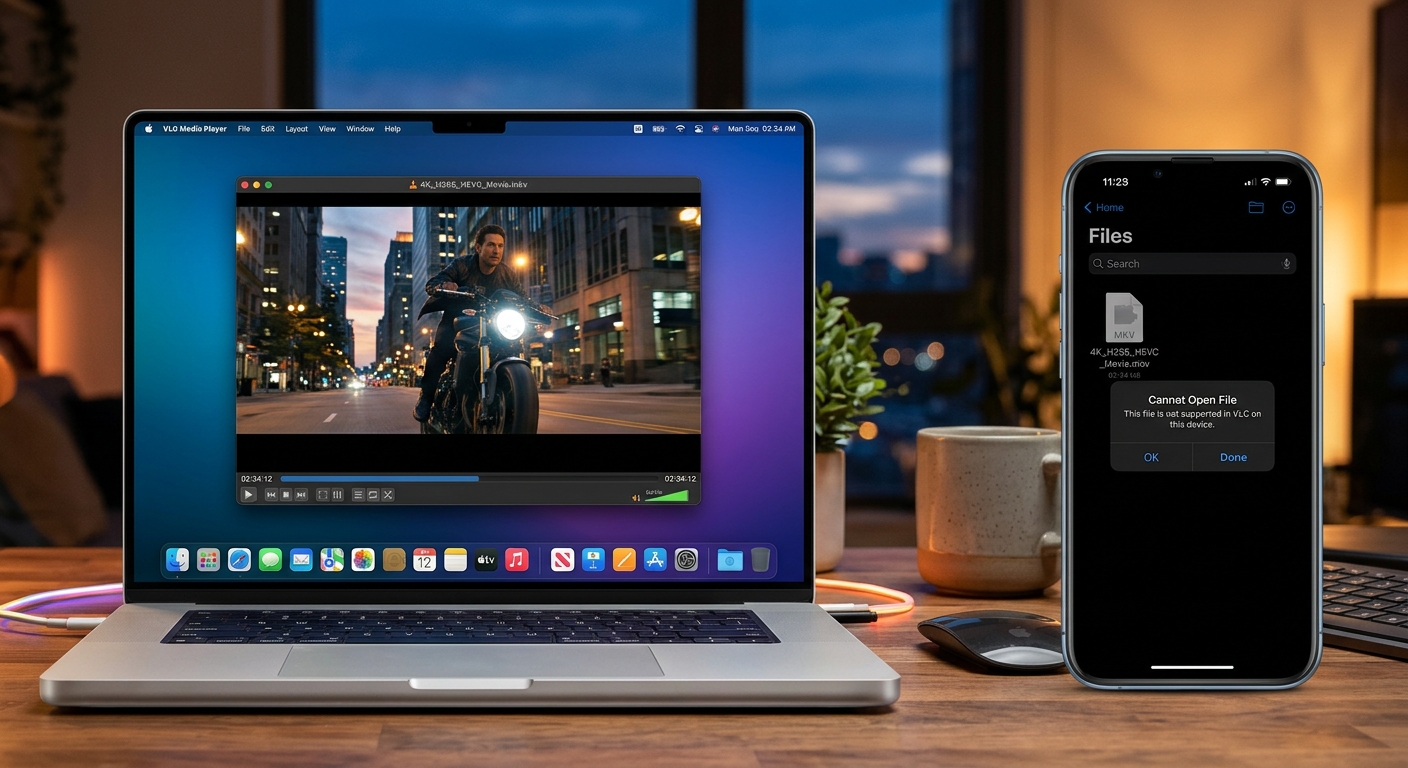
The video plays perfectly on your Mac. You send it to your iPhone, tap the file, and get an error, a blank preview, or sound without a picture. That feels confusing when you just watched the same file from beginning to end. Usually, the transfer is not the problem. VLC and your iPhone’s built-in apps simply have different abilities.
VLC can read many combinations of video files that Apple’s built-in playback tools do not accept. The fix is usually to create a compatible copy. You need to check three things: the file container, the video codec, and the audio codec.
Your Playback Fix in Three Points
- VLC playback does not confirm compatibility with your iPhone’s built-in apps.
- MP4 with H.264 video and AAC audio is a broadly compatible choice.
- HandBrake can create that copy for free on your Mac.
Why VLC Can Play a File Your iPhone Rejects
VLC brings its own broad collection of media readers and decoders. These let it open many kinds of containers and interpret many video and audio formats. It does not depend entirely on the playback support built into macOS.
Your iPhone’s built-in apps work within Apple’s supported media capabilities. Support depends on the app, iPhone model, software version, and details inside the file. A video that opens in VLC on a Mac may fail in Photos or in a Files preview.
This is an app compatibility issue, not proof that your iPhone lacks enough processing power. Installing another player on the phone may let you watch the original. Creating a compatible copy is more useful when you want the video to work through familiar Apple apps or share it with someone else.
The Container and Codecs Have Different Jobs
A video file is a package containing several parts. Its filename shows only a small piece of that information.
The Container Holds Everything Together
The container organizes the video, audio, subtitles, and timing information. MP4, MOV, MKV, and AVI are container formats. The extension at the end of a filename usually identifies this outer package.
An MP4 extension does not tell you exactly how the pictures and sound were compressed. Two MP4 files can contain different codecs and behave differently on the same phone.
The Video Codec Determines How Pictures Are Read
A video codec describes how moving images are encoded and decoded. H.264, HEVC, and AV1 are examples. Your playback app needs support for the codec inside the container.
VLC’s broad range of supported formats helps explain why successful desktop playback is a limited compatibility test. It shows that VLC can interpret your file. It does not establish that another app can interpret the same combination.
H.264 is a sensible target for a general-purpose iPhone copy. Modern iPhones also support HEVC in many situations, but support for newer formats varies across devices and workflows. H.264 reduces those variables when straightforward playback is the goal.
The Audio Codec Can Cause Its Own Problems
Audio has a separate codec. AAC, AC-3, DTS, and Opus are examples. A player might understand the video track while failing to decode the soundtrack. That can produce a moving picture with no sound.
For a broadly compatible copy, choose AAC audio. Stereo is a useful default for everyday viewing. It avoids relying on a particular surround sound format or audio setup.
How Common File Combinations Affect Playback
| File Combination | What Can Happen on iPhone | Useful Next Step |
|---|---|---|
| MKV containing H.264 and AAC | The container may prevent built-in playback. | Create an MP4 copy. |
| MP4 containing unsupported video settings | The extension looks suitable, but playback can still fail. | Encode H.264 using a compatible preset. |
| Video with an unsupported audio track | Playback may fail or have no sound. | Convert the soundtrack to AAC. |
| MP4 containing H.264 and AAC stereo | Broad compatibility when resolution and encoding settings fit the device. | Test it in the intended iPhone app. |
Changing a filename from holiday.mkv to holiday.mp4 does not change the container or either codec. It only changes the label. A conversion tool must write a new file.
Check the Original Before You Convert It
Open the video in VLC on your Mac. Look under the Window menu for Media Information, then check Codec Details. Menu wording can vary by version. Find the video codec and audio codec, and note the resolution.
This small check can explain the failure immediately. An MKV file with a DTS soundtrack has more than one possible obstacle for built-in iPhone playback. An MP4 with H.264 video may instead have unusual encoding settings, a damaged track, or an incomplete transfer.
Keep the original file. Your converted copy is for convenient playback, and re-encoding can lose some detail. Having the source lets you make a better copy later without converting an already compressed export again.
Convert the Video Free on Your Mac With HandBrake
HandBrake is a free, open-source video converter available for macOS. It reads many common video sources and can produce MP4 files with H.264 video and AAC audio. Download it from its official project website and install a version compatible with your Mac.
The project’s official preset documentation describes Fast 1080p30 as a broadly compatible starting point. Check the individual settings after selecting it, especially if you previously customized the app.
-
Open your source video. Launch HandBrake and select the file that fails on your iPhone. Wait for the source scan to finish. Check the duration to confirm you opened the intended recording.
-
Select Fast 1080p30. Find this preset in the General group. It gives you a practical starting point for everyday phone viewing. It can reduce higher resolutions and frame rates, which helps compatibility but changes the original presentation.
-
Confirm the MP4 container. In the Summary tab, set Format to MP4. Choose a destination folder and give the output a distinct name, for example
holiday-iphone.mp4. -
Confirm H.264 video. In the Video tab, choose H.264 (x264). Keep the preset’s profile, level, and frame rate settings unless you have a specific reason to adjust them. Avoid selecting an H.265 or AV1 encoder for this compatibility copy.
-
Set the soundtrack to AAC. In the Audio tab, select the language track you want. Choose an AAC encoder and Stereo mixdown. A bitrate of 160 or 192 kbps is a reasonable starting point. Avoid audio passthrough here because it can preserve the incompatible original codec.
-
Check subtitles and picture dimensions. Keep the aspect ratio intact and avoid enlarging a small source. If subtitles must appear in every player, burn the desired subtitle track into the picture. Burned subtitles cannot be turned off afterward.
-
Start the conversion. Click Start and let the encode finish. Open the resulting file, check the beginning and a later scene, and listen for clear, synchronized audio.
HandBrake re-encodes the video in this workflow. If only the container was incompatible, a separate remuxing workflow could change the packaging without re-encoding. The steps above provide a consistent route when you need to standardize both picture and sound.
Keep Quality Sensible and File Sizes Manageable
For ordinary 1080p footage using x264, a constant quality setting around RF 20 to 23 is a useful starting range. Lower RF numbers retain more detail and usually produce larger files. Higher numbers reduce size at the expense of picture quality.
Use HandBrake’s preview feature to encode a short sample before committing to a long recording. Look at movement, faces, dark areas, and small text. Those details reveal compression problems more clearly than a still title screen.
A larger output file is possible even when the source was smaller. Different codecs compress differently. Converting an efficient HEVC file to H.264 may require more storage for similar visual quality.
HDR footage needs extra care. A basic compatibility export can change brightness or colors if the HDR-to-SDR conversion is not handled properly. Check a sample on the phone before processing a whole collection.
Test the Finished Copy in Your iPhone’s Built-In App
Transfer the new MP4 using AirDrop or your usual file service. Make sure you select the converted copy rather than the original with a similar name. If the file is stored in the cloud, let it download completely before testing.
Open it in Files. If your goal is Photos playback, use Save Video from the share sheet when that option is available, then test it in Photos too. An app’s ability to preview a file does not automatically mean it will accept that file for import.
If the copy still fails, check these details before changing settings again:
- Confirm the transfer finished and the file is not empty or truncated.
- Check that the exported tracks are H.264 video and AAC audio.
- Try the completed export in another Mac player, including the built-in player.
- Check available iPhone storage if downloading or saving the video fails.
- For an older device, try a 720p30 preset with the same codecs.
If several players fail at the same point, the source may be damaged. A converter cannot reliably reconstruct missing video data. Obtain a complete original before repeating the export.
Make the Copy Your Phone Can Read
Your Mac playing a video in VLC proves that one capable player understands it. Your iPhone’s built-in apps still need a supported container, readable video and audio tracks, and settings appropriate for the device.
For most everyday compatibility problems, an MP4 copy containing H.264 video and AAC stereo audio is a dependable starting point. Keep the source, convert a short sample, and test the result in the app you actually plan to use. Once that sample works, you can process the full video with much less guesswork.